banner
约 300 字
1 分钟

安装和使用rclone挂载alist到本地

-
无标签

安装alist

  1. 在1panel应用商店搜索alist安装

    blog image
    blog image
  2. 容器列表点击 终端 按钮,进入容器内执行命令设置密码。

纯文本
./alist admin set 123456
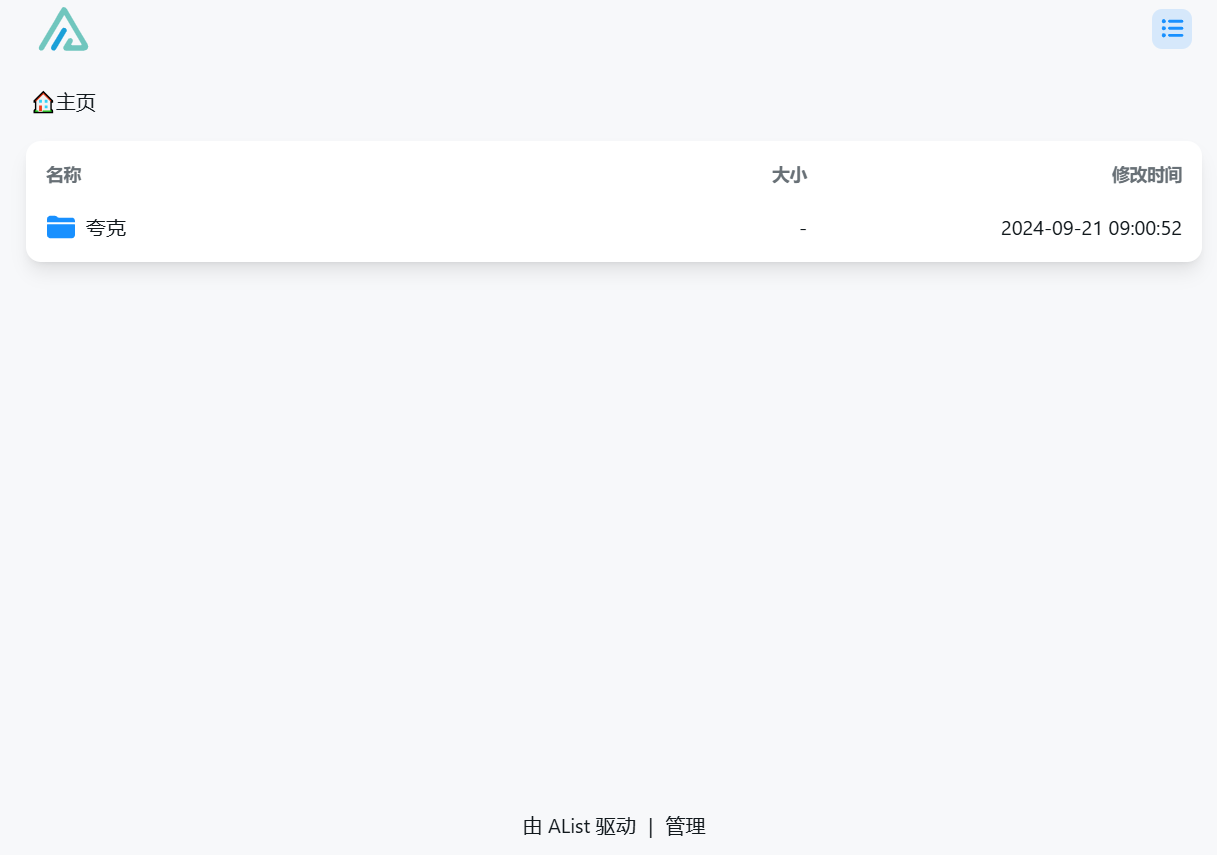
  1. 添加网盘 进入首页-管理-添加

blog image
blog image

安装Rclone

  1. 复制rclone文件到/usr/bin目录 rclone文件下载:https://pan.quark.cn/s/53ffaa640cbc

  2. 增加可执行权限

纯文本
chmod +x /usr/bin/rclone
  1. 新建挂载文件夹 /mnt/alist

  2. rclone配置

纯文本
rclone config

alist的url:http://192.168.2.129:5244/ rclone配置名:alist

  1. 查看配置是否正确

纯文本
rclone lsd alist:
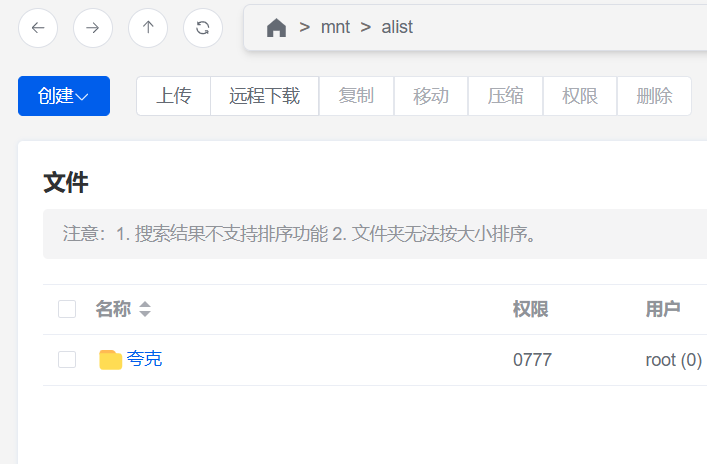
  1. 运行命令进行挂载

纯文本
rclone mount alist: /mnt/alist --header "Referer:" --multi-thread-streams 6 --buffer-size 512M --vfs-fast-fingerprint --vfs-cache-mode full --no-modtime --file-perms 0777 --copy-links --allow-other --allow-non-empty  --umask 000 --daemon --cache-dir /mnt/cache/rclone

blog image
blog image

设置开机自启

  1. 进行卸载

纯文本
fusermount -qzu /mnt/alist
  1. 添加开机启动脚本内容

纯文本
nano /etc/systemd/system/rcloneyy.service

添加:

纯文本
[Unit]

Description=rcloneyy Service

After=network.target

[Service]

Type=simple

ExecStartPre=-/bin/sleep 30

ExecStart=rclone mount alist: /mnt/alist --header "Referer:" --multi-thread-streams 6 --buffer-size 512M --vfs-fast-fingerprint --vfs-cache-mode full --no-modtime --file-perms 0777 --copy-links --allow-other --allow-non-empty  --umask 000 --cache-dir /mnt/cache/rclone

[Install]

WantedBy=default.target
  1. 验证并让开机脚本生效

  • 更新systemd目录

纯文本
systemctl daemon-reload
  • 创建开机快捷方式

纯文本
systemctl enable rcloneyy.service
  • 启动服务

纯文本
systemctl start rcloneyy.service
  • 查看服务状态

纯文本
systemctl status rcloneyy.service

blog image
blog image

windows上直接访问alist文件夹

[[Ubuntu开启samba文件共享]]

END

相关文章

暂无相关文章